
#
Setting up Poolaris
Setting up Poolaris in your guild is simple and streamlined, thanks to our setup wizard. This guide will walk you through the entire setup process, ensuring your server is ready for seamless match tracking, ranking, and more.
By the end of this guide, you will have:
- Properly configured roles and channels for Poolaris.
- Established permissions for guild managers, players, and the bot in the Poolaris category.
- A smooth, contained, and automated environment for managing your university's billiards club.
Let's get started!
#
Using the Wizard
Make sure the bot has all the required permissions before running the setup wizard. Review the required permissions to ensure everything is configured correctly on the bot's role. Also make sure that there's space for 6 channels and 2 roles in your server.
Once a club officer has applied to use Poolaris and received approval, you can proceed to run the
/settings wizard
command.
This command simplifies the setup process by automatically creating the necessary roles and channels for Poolaris to function properly.
When the embed appears, confirm that the university displayed matches the one you applied for when setting up Poolaris for your server. If the information is correct, click Start to initiate the setup process.
The bot will then:
- Create the necessary roles, a category, and all channels within that category for Poolaris to function properly.
- Send the registration embed in the registration channel.
- Follow the bot’s changelogs in the support server to stay up-to-date with the latest updates.
Please do not delete, rename, or modify permissions of any roles or channels created by Poolaris. Doing so will break Poolaris functionality, permanently erase local match history, and require you to contact us in the support server for recovery.
#
Roles

Club officers should assign themselves this role after Poolaris creates it. This role grants access to officer-only commands, like managing seasons, updating & canceling matches, etc.
The role is automatically assigned to the user who initiated the setup wizard.

This role is for players who will use Poolaris in your server. It’s automatically assigned by the bot when they register or log in. It provides them access to channels within the Poolaris category, so avoid assigning it manually to prevent any unintended behavior.
#
Category
All channels below will be created in this category. Poolaris' setup is self-contained and the bot should only send messages, make updates, or interact within this category.
To enforce this, please go to Server Settings > Integrations > Poolaris and set it up like so:
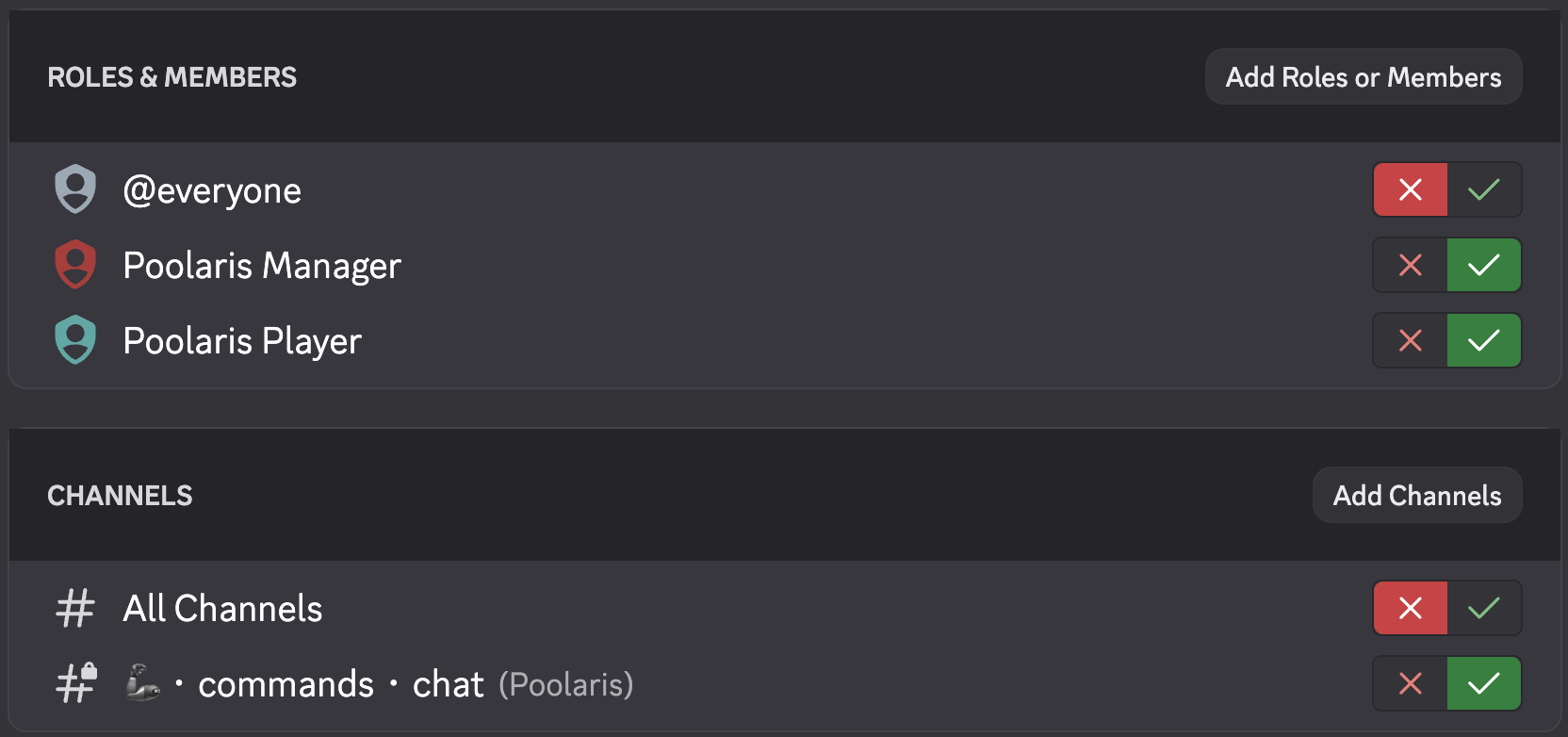
This will make sure only users with the roles Poolaris Player or Poolaris Manager are able to use the bot's commands in the designated commands channel.
#
Channels
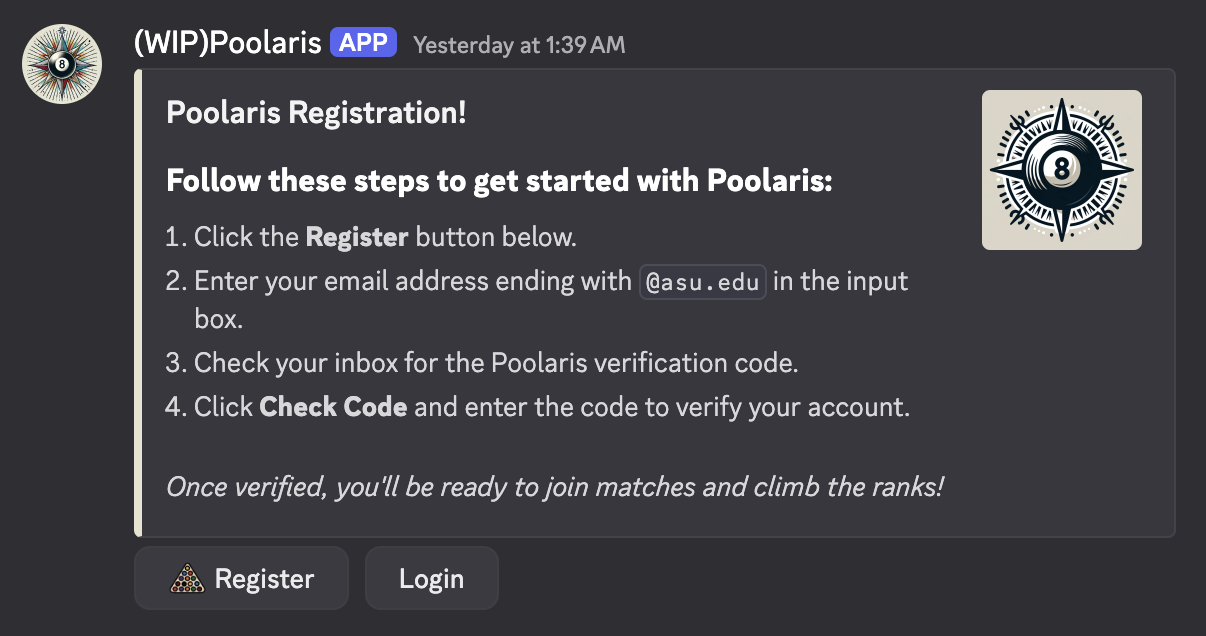
Poolaris will post the registration embed in this channel at the end of the setup.
New and existing players can use the buttons Register or Login to start using Poolaris in your guild.

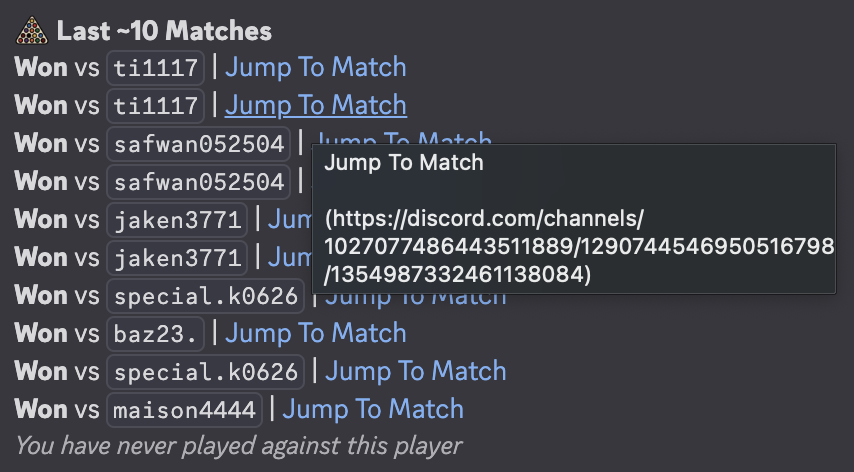
After players score matches, they'll get logged here. This is your server's permanent local log of matches. When using the /profile or /season lookup commands, the match links will jump straight to a message in this channel.
Poolaris will post embeds to this channel when one registered player sends a challenge to another registered player using the /challenge commands.
The opponent can either Accept or Decline these matches. Players will use the same embeds to score their match if it was accepted.
Users with Poolaris Manager can Cancel ongoing matches.
If you've set up Integration Settings for the bot as shown above in the Poolaris Category section, all users with Poolaris Player or Manager roles will be able to use commands in this channel. They are also free to chat about their games here!
The bot automatically follows changelogs from our support server into this channel. This way, your guild is always updated whenever we make a change to the bot.

Events such as new player registrations, match cancellations, etc will be logged here for future reference.
Only users with Poolaris Manager have access to this channel.
#
The repost command
If the registration embed was accidentally deleted or removed from the designated channel, you can use the /settings repost command to resend it to the appropriate channel.